Buy the work right, before you commit a penny.
Tender competitively, compare like-for-like, then turn the winner into orders — with value-band authorisation and change control built in, so nothing is committed unseen and the margin you quoted stays protected.
What happens next: we walk the tender-to-order flow on a live board — RFQ, award, authorisation — in about thirty minutes.
Compare subcontractor prices side by side
Open a board from any quote or project. Work groups into trade packages; each subcontractor's prices sit in their own column so you read value line by line, award the winner and push it straight to an order — one decision, one record.
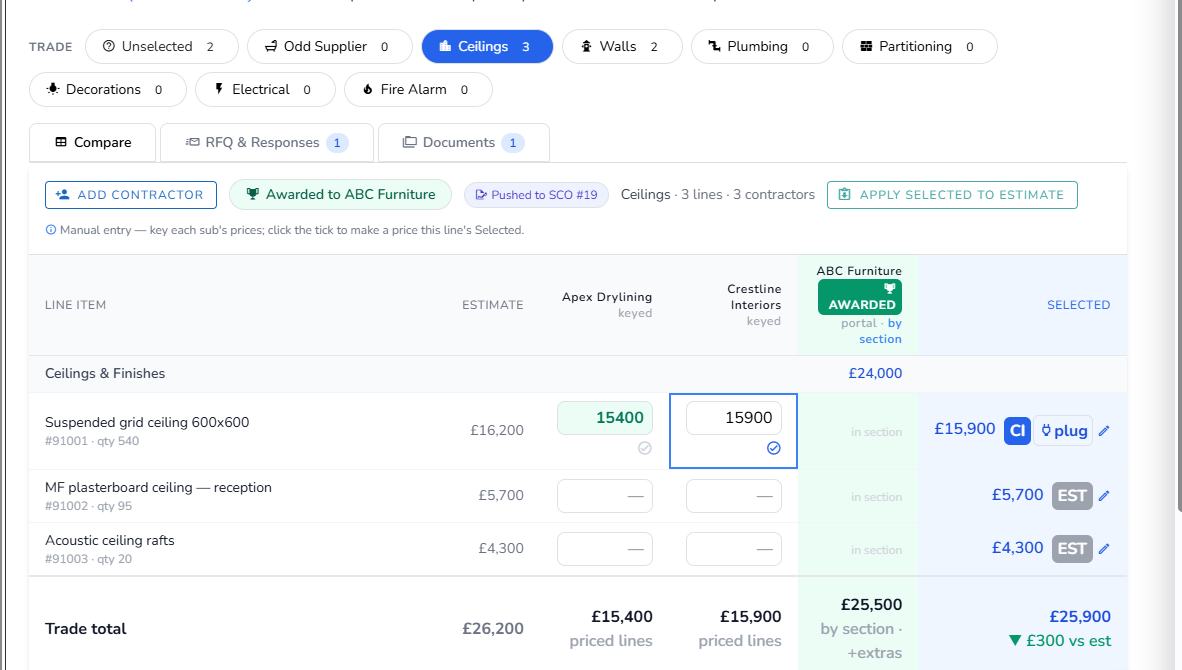
- Portal-first RFQs sent and returns recorded
- Grouped by trade package — assign a trade to any line straight from the board
- Select the best price per item, separate from your estimate
- A collapsible tree that mirrors your estimate, however deep it nests
- Award a package, then push the winner to SCO and/or PO
- Apply selected prices back to the estimate — audited & undoable
Subs price online — against your targets
Every RFQ carries a secure link to a pricing portal. The sub opens it in the browser, prices the package line by line and submits — returns land straight in their column on the board, so there's nothing to re-key and nothing to lose in an inbox. And when you'd rather lead with a number, send a target round: your plugged budget goes out as a per-line target for them to confirm or beat.
From cold contact to priced column, without the admin
No spreadsheets to issue, no returns to re-key — and no supplier setup just to ask for a price.
- No account, no software — subs price in the browser from a secure link, and can revise and re-submit
- Target rounds — snapshot your plugged budget as per-line targets; each sub sees only their own targets, never another firm's price
- Add-ons come back structured — extras arrive as priced lines you resolve on the board, not a note buried in an email
- Invite anyone by name & email — no supplier record needed; promote them to a local supplier later, kept out of your Xero/Sage push
No portal? Key their price exactly as it landed.
Plenty of subcontractors still phone or email a number — and a phoned-in “£24k for the lot” shouldn't force you to reverse-engineer line rates just to get it onto the board. Key the return at the granularity they actually gave it — line by line, by section, or a single lump sum — and Vyntworks splits it across your estimate pro-rata, so it sits beside the portal prices, compared like for like.
- Three ways to price — per line, per group or one lump sum, switched any time; figures you keyed in another mode wait in the wings, and only the active one is counted or pushed
- Group prices at any depth — “ground floor £15k, first floor £9k”, or a whole subsection — priced the way the sub actually quoted it, never double-counted against a line
- Plugged in pro-rata — a lump sum or group price splits across the lines beneath it, each borrowed figure badged so where it came from is never lost
- One board, every route in — portal returns and internally-keyed prices sit side by side, so you still compare like for like and award the best
Purchase & subcontract orders, under control
Purchase Orders
Commit lines to a supplier and track committed-vs-estimated cost as you go. Apportionment across grouped and lump-sum lines is handled for you, so the estimate and the commitment never drift apart.
Subcontract Orders
Commit work to a subcontractor with its own lifecycle — raised through to active — plus authorisation and automated emails.
Approval before commitment
No purchase or subcontract order is issued until the right person signs off — routed automatically by the value at risk, with project-level exceptions where you need them.
The order carries its own scope schedule — yours to edit before it goes
A purchase or subcontract order isn't a lump sum. The item list is pre-filled from the estimate and fully overridable — and exactly what you edit is what prints, line by line, on the order and its Scope of Works schedule.
- Edit every line before issue — change a quantity, rate or wording, drop a line, or add a free-text note; subcontract orders work just like a PO's editable items
- What you edit is what prints — the edited list drives both the order's line table and the auto-appended Scope of Works schedule, not a description rebuilt from the estimate
- A totals guard you can't talk past — the schedule must add up to the order value before it can be raised or re-raised (notes count as zero), so the document never contradicts the commitment
- Pre-fill, reversibly — “Pre-fill from lines” snapshots your edits first and offers an Undo, so an accidental click is never destructive
- Carried forward on revise — re-issue and the edited scope rides along; the money and allocation behind it are untouched, so budget, drawdown and invoice matching behave exactly as before
The site address and the site team — held on the project, filled on every order
An order has to reach the right gate and name the right person. Save each site's delivery address and its on-site contacts once on the project, and Vyntworks offers them in the picker every time you raise a purchase order, subcontract order or delivery note — so the address is never re-typed and the pack already says who to call when the lorry's at the gate.
- Site address, typed once — label each site's delivery address on the project's details page; one pick fills the order's whole delivery block — address, town, county and postcode — instead of re-keying it on every PO
- The site team beside it — the site manager and anyone else on the ground, each with a role label, name, phone and email, set on the same page
- Offered on every order — purchase orders, subcontract orders and delivery notes all list the project's saved addresses and site contacts, so the right site and the right name are one tap away
- What you picked is what prints — the whole address block snapshots onto the order, and anything you override by hand still wins, so the delivery details are exactly what you meant to send
- Pull from your team or add by hand — link a registered Vyntworks user and their details snapshot in, or type a one-off name and number for someone who isn't on the system
One subcontract order. A full pack of documents.
Raising a subcontract order shouldn't mean re-typing the same eight documents into Word. Vyntworks assembles the whole Short Form Order suite — the order, your conditions, the drawing register and the rest — as separate files for you to review, edit and send. Assembly is automated; issue is always yours.
Assembled from your data — yours to check before it goes
Built on a reference Short Form Order set, the suite carries everything a subcontractor needs in one bundle — each document a separate file, nothing issued behind your back.
- Eight documents in one assemble — the order, Subcontract Conditions, drawing register, schedule of attendances, payment schedule, sum analysis, works-package and pre-start minutes
- Conditions snapshotted from your approved terms — frozen at issue, never live-edited, so the contract you send is the contract you signed off
- Choose what goes in — each document pre-ticked or held back per order, with the ones that must be present marked required
- Define your own suite types — Standard UK, JCT or international — each an ordered recipe, set under Subcontract Tendering settings
Reviewed and ready? Issuing the order sends the whole pack.
You assemble and check the suite — then issuing the subcontract order emails it to the subcontractor in one go: the order as a Word file, the generated documents enclosed alongside it, refreshed to the order's latest state the moment it sends.
- The reviewed pack travels with the order email — the Short Form Order plus the generated Conditions, Sum Analysis, Payment Schedule and Drawing Register, enclosed and listed under “Documents attached”
- Refreshed at send — the suite re-assembles as the email goes out, so the subcontractor always receives the pack that matches the order they're being committed to
- Big files become secure download links — anything too large to attach directly travels as a link that expires after seven days, never a bounced email
- Anything not ready is flagged “To follow” — a document still being finalised is listed in the email body instead of holding the whole order back; the Works Package scope rides along as a clearly labelled DRAFT for review
- Re-issue resends the updated pack — revise the order and the fresh suite goes out the same way, so a subcontractor is never working from a stale set
No live AI in any legal or financial document — only the works-package scope is AI-drafted, and it always comes back for your review before issue. Sending the suite is best-effort and additive: if any one document hiccups, your order email still goes out.
Every order you send, filed in the project — automatically
Send a Short Form Order or raise a purchase order and Vyntworks keeps a copy. The rendered order pack and the head PO are filed straight into the project's document register — so months later there's one place that holds exactly what went out, to whom, and at which revision.
One retrievable record per project — nothing leaves Vyntworks unlogged
Drawings, conditions and the orders you issue all land in the same project file, tagged by trade package and kept revision-aware — so the file always shows the version that actually went out. When a client, QS or auditor asks, the answer is one search away.
- Short Form Orders filed on send — the rendered subcontract pack is saved to the project the moment it's dispatched, with no extra step
- Head POs filed on raise — the purchase-order print is captured the same way, whether you run on Sage, Xero or locally
- Revision-aware — re-issue an order and the new copy supersedes the old, which stays in the file marked older, never deleted
- Tagged & retrievable — filed alongside drawings and conditions, labelled by trade, one record per order with no duplicates
- Never in the way — filing runs in the background; if anything ever hiccups, your order still goes out
No screenshots to save by hand, no “where's the order we sent?” — the project file keeps the record for you.
Approvals that scale with the value at risk
Set a company-wide ladder of value thresholds, each routed to its own approver. Every order — purchase or subcontract — finds the highest threshold it clears: small ones fall back to the default authoriser, larger ones land on a director's desk. No manual chasing, no commitment out the door unsigned — because the routing is structural, not a habit someone has to remember.
- Value-band tiers — each threshold has its own approver(s), and any one of them can approve
- One ladder for POs and subcontract orders — a within-budget SCO that clears a band routes for sign-off, exactly like a PO; size alone is enough to need approval
- Highest-match-wins routing; orders below every band fall back to the default, project or team authoriser
- Per-project exceptions override a single band on named jobs — every other band still follows the company ladder
- The approver is frozen at raise — a later change to the ladder can't redirect an in-flight approval, and a variation that tips a live order over a band sends it back for sign-off
Wrong line spotted in the approval queue? Fix it in place.
An order waiting on sign-off used to be stuck — cancel and re-raise to change a single rate, and you'd lose the number and the trail. Now you edit it where it sits: it stays awaiting authorisation, keeps its number, and nothing touches your accounts until it's properly approved.
- Edit without cancelling — correct a rate, quantity or line on a PO that's already out for authorisation; its status and PO number are preserved
- The stale approval link dies on edit — changing the order invalidates the outstanding approval email, so no one can sign off a version that no longer exists; re-raising sends a fresh link
- No premature accounting push — an in-authorisation edit never calls Xero or Sage; the order only lands in your finance system once it's approved
- Any admin can make the fix, not just the raiser — a company admin can correct a pending order when the person who raised it is out, strictly scoped to your own company
Three kinds of variation, each handled correctly
Scope and value change on live projects — Vyntworks keeps the project value and client position accurate, so the number you report is the number that's true. Once approved, each one lands on the valuation, carried the right way.
Client variation
A change to the client's contract value. Added straight in, with a pending → approved / rejected client position you track. Only confirmed ones count on the client report.
Internal variation
An internal cost or scope change. This is the one that goes for authorisation — created pending, an Approve / Decline email goes to the authoriser, and it only counts once approved.
Subcontractor variation
A change to a subcontractor's order. Requires a supplier, feeds the subcontractor variation report, and can be raised straight from a tender add-on.
Approve a variation from your inbox — and nothing counts until you do
Save an internal variation and it's created pending: an Approval Request email goes to the project's authoriser — the person your authorisation ladder routes that value to. It carries the whole picture — who raised it, the buy and sell values, the project's current position — under a green Approve and a red Decline. The change only starts counting toward the project's revised figures once it's approved.
- Act without logging in — the Approve and Decline links are signed, so the authoriser decides straight from the email; a second-click confirmation card commits it, so nothing flips on a stray tap
- The whole picture in the message — a summary table shows the sender, type, description, buy and sell values and the project's current overspend (flagged red when the job's already over) — so the call is made on the numbers, not a guess
- Only approved change counts — approve and the variation joins the project's revised buy and sell; decline and it stays excluded. Pending change never quietly moves your figures
- Resend, edit or remove — no reply yet? Resend the request from the pending line. Correct a description, value or supplier — or remove a variation you no longer want — right from the project table
- Lock down who can confirm client change — add a variation gate under Governance and a move to a client variation's approved or rejected position parks for sign-off instead of applying
Give a subcontractor a login — to their work, and nothing else
Once you've committed the work, bring the subcontractor inside without opening the books. Each freelancer gets their own restricted login that shows only the quotes, projects and snag lists you grant them — never the whole company, and never your margin.
Least-privilege by default — you pick exactly what they see
Add a freelancer's login under Settings → Login Control → Freelancer Login, then expand their row to grant access item by item. They see their part of the job; everything else stays yours.
- Scoped to the items you tick — searchable multi-selects for the exact quotes, projects and snag lists this person may view; tick what they need, nothing else is ever visible to them
- Your margins stay private — a per-person gross-profit toggle, off by default, so a subcontractor sees quantities and values but never your GP figures
- Their own login, no shared accounts — each freelancer signs in with their own email and password, kept separate from your internal users
- Auto-saved, instantly revocable — every access change saves as you make it; clear a selection to revoke it, or delete the login and all their access goes with it
- Hand off the snag list — grant a sub the project's snag list and they action their own defects without seeing the rest of the job
Restricted subcontractor logins are included in Vyntworks — no extra module required.
For a one-off, skip the login — send a guest link
Not every outsider needs an account. When you just want a subcontractor to price a package, or a client to look over an estimate, share a single link that opens one quote or one tender pack — and nothing else. No sign-up, no seat, no password to set up. It expires on its own and you withdraw it in a click.
One link, one job — fenced to the target you shared
Open a quote or a Plan Room intake, mint a guest link, and send it. The visitor lands straight in the real workspace for that item — the quote editor and its take-off, or the tender pack — while every other part of your account stays invisible and out of reach.
- No account to create — the link is the key. Your guest opens it and they're in, with their own guest identity; there's no seat to buy and nothing for them to set up
- Fenced to that one item — every request is scoped to the single quote or intake you shared; anything else is denied by default, so a guest can never wander into the rest of your work
- Your live quote stays untouched — a quote link opens on a sandbox copy by default, with its drawings duplicated, so a guest can look and mark up without ever changing your working estimate
- Expires on its own — set a link to lapse, so temporary access doesn't quietly live on after the job's moved past it
- Withdrawn in a click — pull a link the moment you're done and the door closes immediately; edit or re-issue from the same panel whenever you need to
- Admin turns it on — guest links are off until an admin enables them under Settings, so sharing outside the company is a deliberate choice, not a default
Guest access links are included in Vyntworks — no extra module required.
See competitive tendering end to end.
From RFQ to awarded order to variation — we'll walk the whole procurement flow on a live board.